Agent Assist
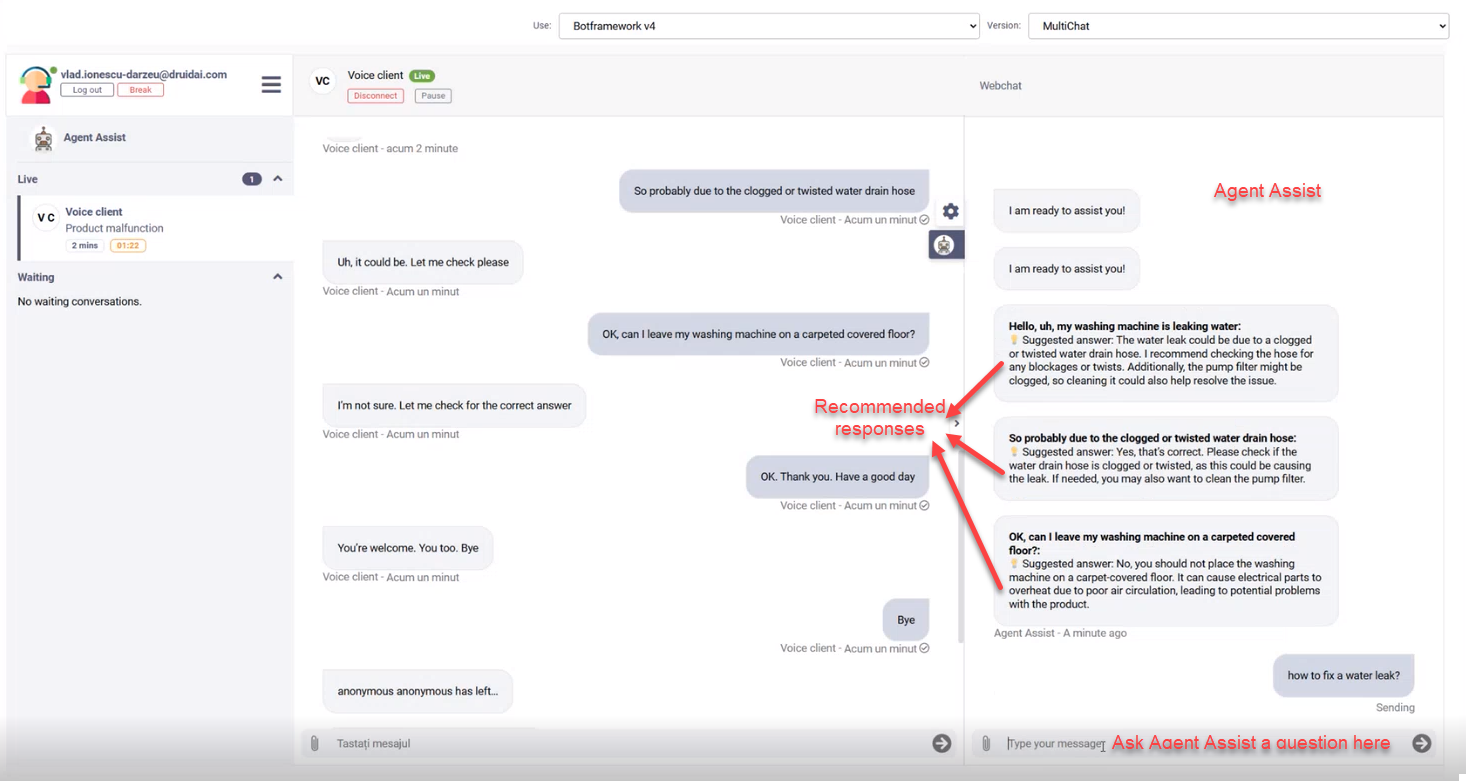
Agent Assist suggests replies to helpdesk agents during a live chat. It reads each client message, searches your Knowledge Base, and uses an LLM to suggest an answer. Agents can also ask Agent Assist questions directly. Agent Assist works with written chats and with real-time voice conversations.
Agent Assist is available as a technology preview in Multichat.
How Agent Assist works
Agent Assist starts automatically when a conversation is transferred to a helpdesk agent, if the AI Agent has an agent assist flow. For each message in the live chat, Druid:
- Adds the message to the transcript in
[[ConversationInfo]].AssistConversationItem.Messageholds the text andOriginatorholds the sender:userfor the client oragentfor the helpdesk agent. - Searches the Knowledge Base for the client's message.
- Runs the agent assist flow to generate a suggested reply.
- Sends the suggestion to the helpdesk agent.
If the client sends several messages quickly, Agent Assist answers only the latest one, after the previous suggestion is complete.
Set up Agent Assist
- In the Solution Library, find the Agent Assist + Live Chat solution and import it.
- Open the AI Agent details (gear icon next to the AI Agent name). On the Details tab, expand Dialogue management.
- Select Use Knowledge Base.
- In Knowledge Base response flow, select Agent assist flow.
- Select Save.
- In Apps, configure the connection string of the GPT-azure.com app.
The solution saves suggestions to the Agent Assist workspace through the Druid Data Service integration.
Agent Assist supports machine translation. See Multichat for helpdesk agents.
Use Agent Assist in Multichat
How Agent Assist appears depends on whether the channel uses voice.
| Channel | Behavior |
|---|---|
| Voice turned on | Agent Assist opens automatically when the agent connects to the client. The agent can't type in the chat while Agent Assist is active. |
| Voice turned off | The Backchannel events panel opens by default. To open Agent Assist, select the AI Agent icon. |
To use a suggestion in a text chat:
- Below the suggested response, select the Copy icon.
- Select the Type your message box and press Ctrl+V.
- Edit the text if needed, and then press Enter or select Send.
Run post-call actions in the assistant conversation
You can run the Voice call terminate flow in the assistant conversation as well. Use it to automate agent-side tasks after a voice call ends. See Voice Call Terminate Flow.
Get the full transcript
With Agent Assist, you can get a transcript of both the client conversation and the assistant conversation, for example for audits or a CRM. Use the GetConversationTranscript internal action. See Internal Actions.